Registration of a New Dataset
This section describes the process of registering a dataset from a source connected to the system. For more details about data sources, see the section "Data Sources".
Important
Currently, there is a limit on the dataset size - 1 GB. The system has not been tested with files larger than this. The recommended file size is up to 100 MB.
Navigation is done through the Data tab in the top navigation panel. In the opened Data Catalog window, click the "Add" button.
A form for registering a new dataset will appear:
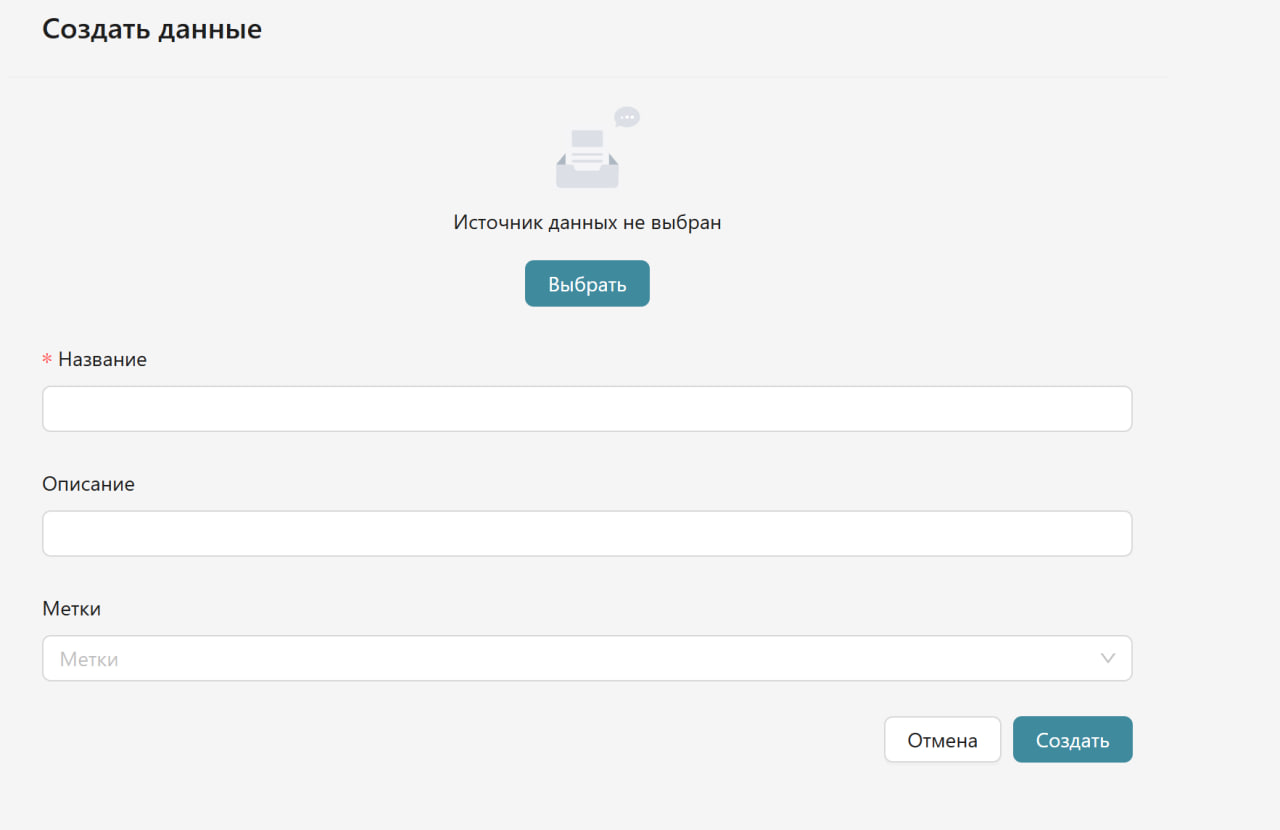
First, you need to select a data source. By clicking the "Select" button, you will have the option to choose the desired source.
After selecting the source, the dataset creation form will update according to the type of the selected source. If an S3 type source is selected, the form will contain a field for uploading a file:
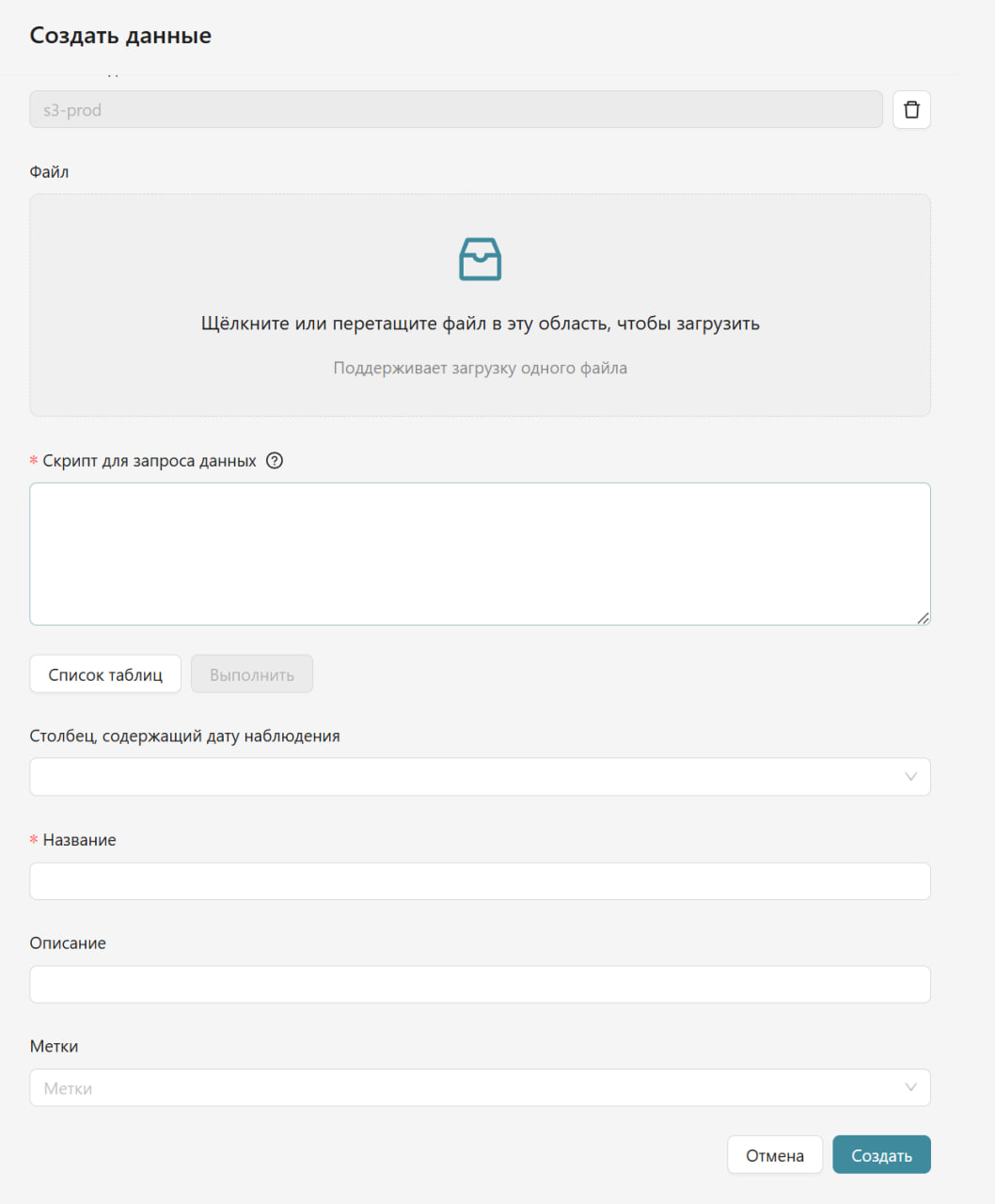
Registration Parameters
- Data Source - must be selected from the list of available data sources.
- File - field for uploading a file to S3. Available only for S3 data sources. You can click or drag and drop the file into the specified area.
-
Data Query Script (mandatory field) - a script in the SQL dialect that is accepted by the data source.
Tip for S3
For S3 type sources, a function to read the entire dataset will be automatically suggested, for example:
data/predictions.csv -
Column Containing the Observation Date (optional field) - the name of the column that contains the reporting date for the data. This is selected after composing the script and clicking the "Execute" button.
- Name (mandatory field) - the name of the dataset.
- Description (optional field) - a description of the dataset.
- Tags (optional field) - tags for the dataset.
To view the list of available tables, you can use the "Table List" button.
After filling in all the necessary data, click the "Create" button. To cancel the operation, click "Cancel".
Selecting Existing Files in S3
If the data file has already been uploaded to the S3 storage, there is no need to upload it again. You can use existing files:
- Click the "Table List" button.
- In the appeared list, select the desired file:
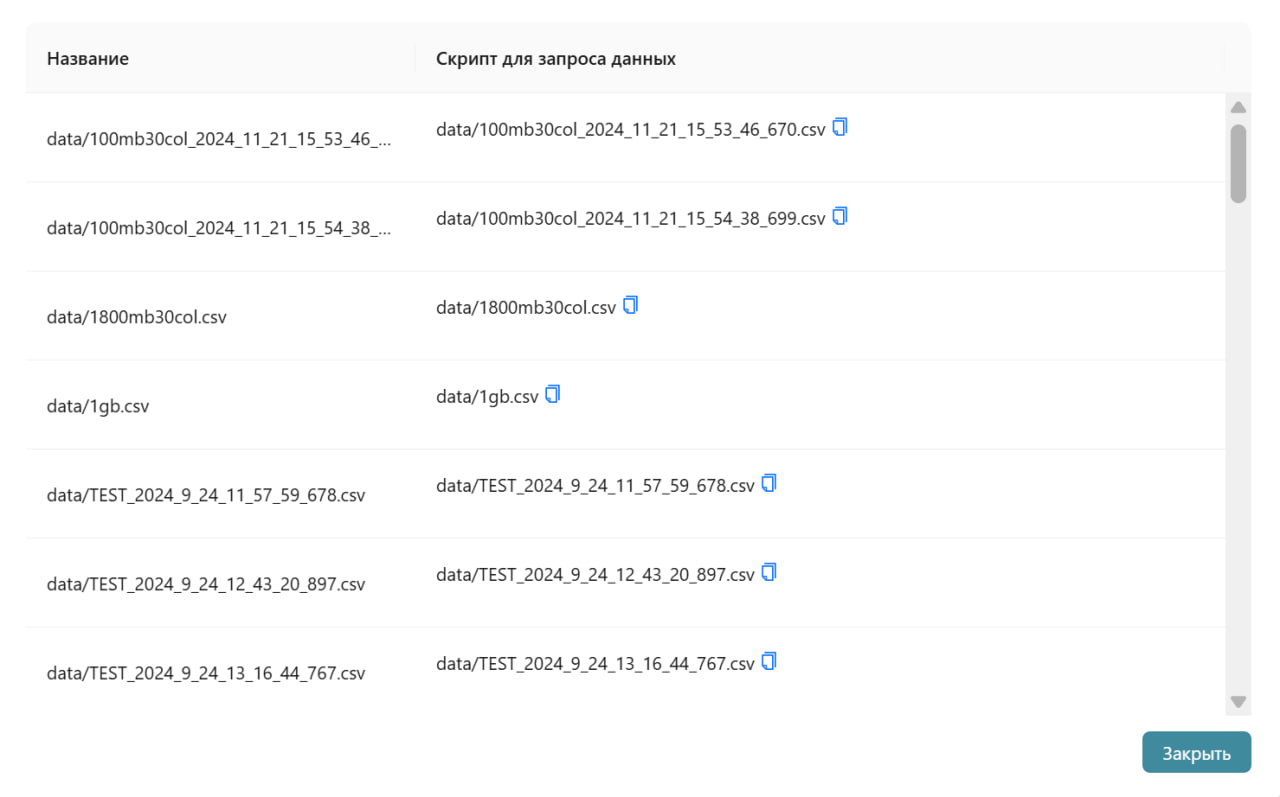
- The Name column displays the file name in the S3 storage.
- The Data Query Script column specifies the path to the file for use in the SQL query. Copy it to later paste it into the main menu field Data Query Script.