Metrics Catalog
Navigation to the Metrics Catalog
Navigation to the catalog of data sources connected to the system is done through the navigation path: Catalog > Metrics.
The data sources catalog page is a table containing information about connected sources:
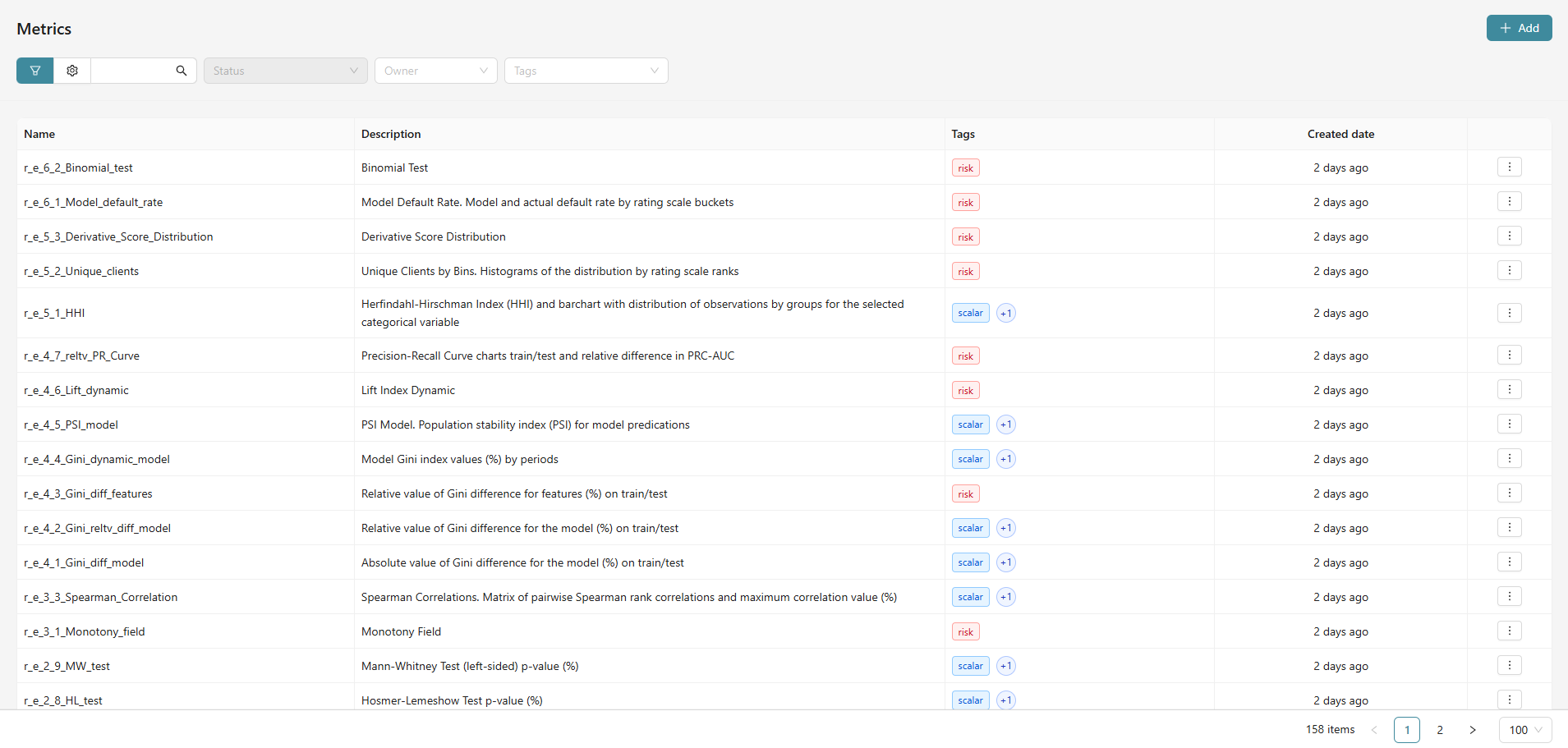
Catalog Management
Catalog Management Toolbar
- Filters - allow filtering transformations by various parameters:
- Status - filtering by the current state of the transformation
- All - additional filtering options
- Tags - filtering by assigned tags
- Owner - searching by owner
- Search - search bar for quick transformation searches
- Display Settings - button to customize the appearance of the table
Metrics uploaded by the user through the application interface are placed at the end of the catalog. Thus, by default, user metrics are at the end of the catalog and sorted by upload date to the system - from newest to older.
To search for a metric, enter a substring in the search field and press Enter or the magnifying glass icon.
Case sensitivity does not matter; the search occurs by the name and description of the metrics,
the names of the metric classes in the source code, as well as tags.
The catalog may contain more than one page. Page navigation buttons, as well as a button to set the number of objects per page, are available in the lower right corner of the screen form.
The metrics catalog is displayed as a table with the following columns:
| Column | Description |
|---|---|
| Name | Metric identifier |
| Description | Detailed information about the purpose of the metric |
| Tags | Tags indicating the characteristics of the metric |
| Created Date | When the metric was added to the system |
| Action Menu | Available by clicking on the three dots on the right side of the row |
Viewing and Creating Objects
To add a new metric, click the "Add" button in the upper right corner of the metrics catalog window. To view information about a metric or perform other actions, click on the three dots on the right side of the corresponding metric row. For more details on creating new metrics, see the section "Registering a New Metric".