Connecting a New Data Source
Creating a new data source is available through the interface: Dashboard > Catalog > Data Sources > Add or Dashboard > Create > Utilities > Data Source
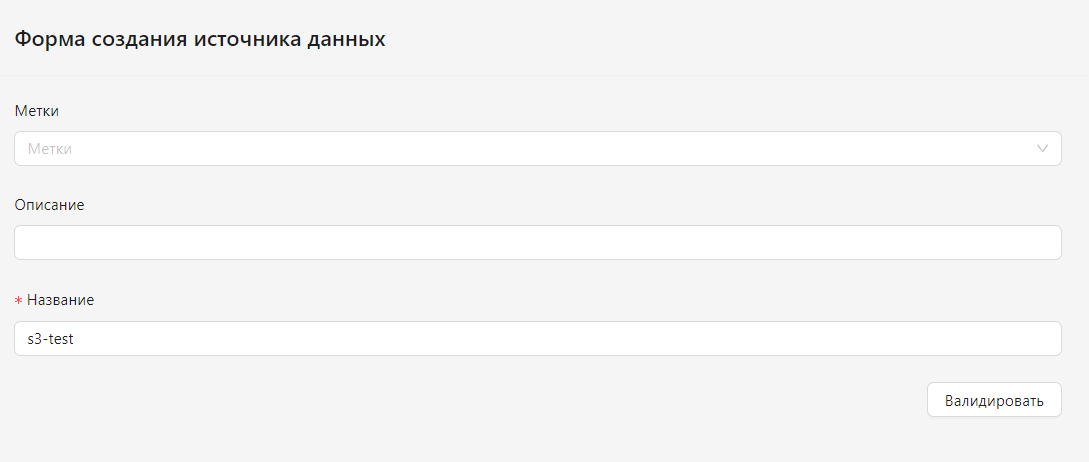
Registration parameters:
- Name (required field) - the name of the data source in the system. It must contain only Latin characters, numbers, and hyphens. A secret will be created in the namespace where Predicate is deployed based on this name, so this name must not match existing secrets.
- Description (optional field) - a description of the data source.
- Tags (optional field) - a list of tags for the data source.
After filling in the name, you must click the "Validate" button. If a secret with the specified name already exists, an error will appear. If the name is available, additional fields for secret parameterization will appear.
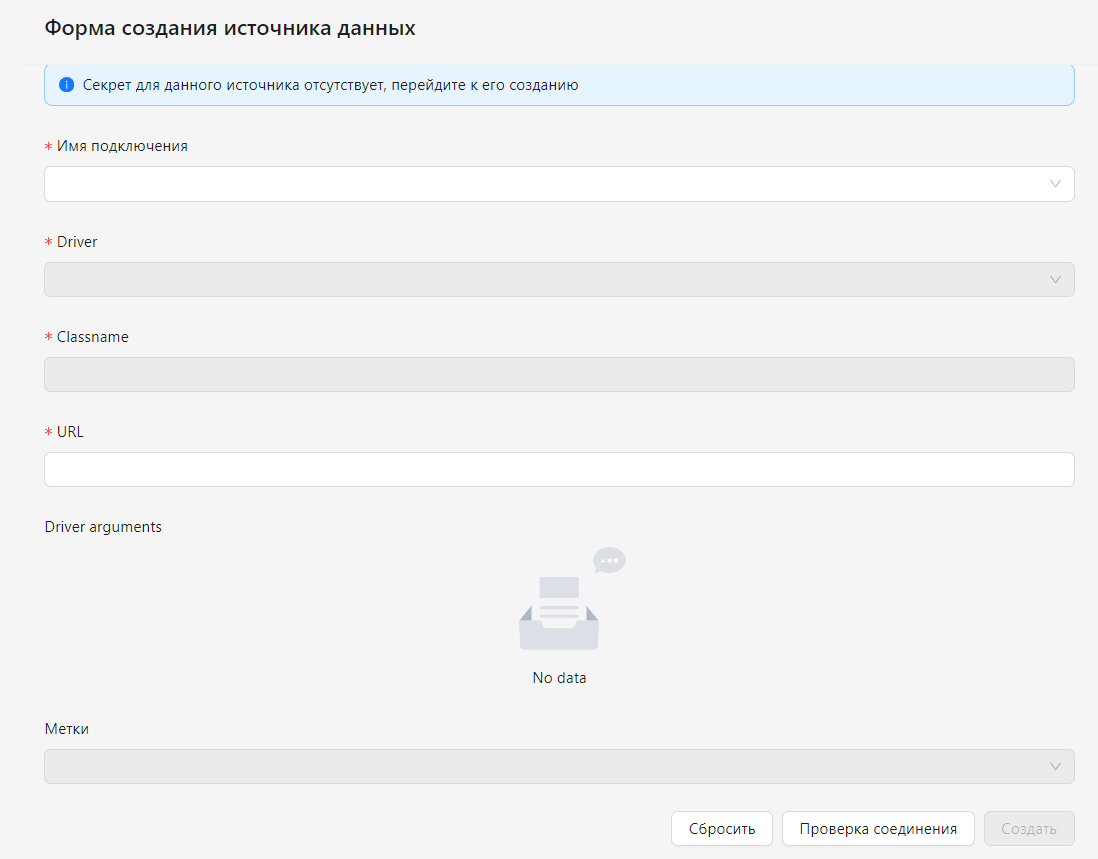
Secret parameters:
-
Connection Name (required field) - the name of the data source. The following options are available:
- s3-duckdb - connection to S3 source;
- postgresql - connection to PostgreSQL DB;
- oracle - connection to Oracle DB;
- hive - connection to Hive DB;
- impala - connection to Impala DB.
-
Driver (required field) - the driver for connecting to the source, automatically filled after selecting the connection name.
- Classname (required field) - the class for connecting to the source, automatically filled after selecting the connection name.
- URL (required field) - the connection path to the source. For s3-duckdb, it is filled automatically; for other connections, a data entry template appears.
- Driver Arguments - a list of driver parameter values. The specific list appears after selecting the connection name.
- Tags - a list of automatic metrics assigned depending on the connection name.
Depending on the connection name, Driver Arguments may contain the following fields:
| Connection Name | Driver Arguments |
|---|---|
| s3-duckdb | 1. Path to S3 (s3_url) 2. Connection Key (s3_access_key) 3. Connection Secret (s3_secret_access_key) 4. Bucket Name (s3_bucket) |
| postgresql | 1. Login (user) 2. Password (password) |
| oracle | 1. Login (user) 2. Password (password) |
| hive | 1. Login (user) 2. Password (password) |
After filling in all the data, you must click the "Test Connection" button to verify the entered data. After a successful connection, you must click the "Create" button.
Registration result: the data source parameters become available through Dashboard > Catalog > Data Sources. The list of sources displays the connection success status.