Templates Catalog
Project Template is a pre-configured set of metrics. Optionally, a pre-configured monitoring schedule can be saved in the template. When working with a project template, the user only needs to select the dataset to initiate calculations.
Accessing the Template Catalog
Access to the catalog of existing project templates in the system is done through the Templates tab in the top navigation panel.
The project template catalog page:
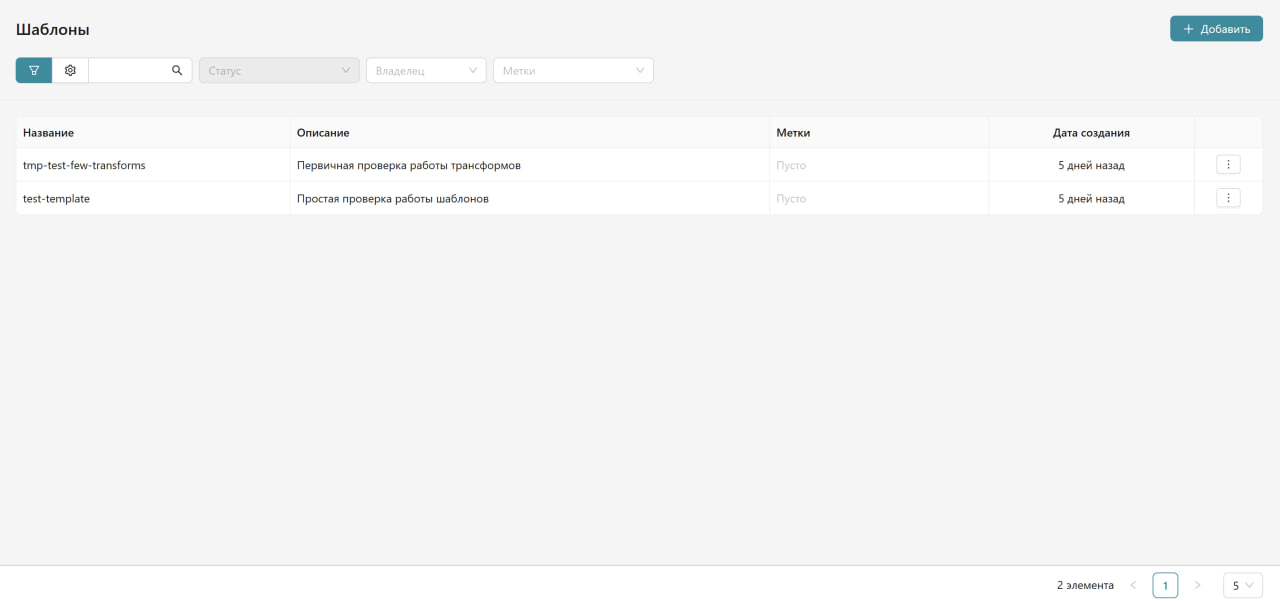
Catalog Management
Catalog Management Toolbar
- Filters - allow filtering transformations by various parameters:
- Status - filtering by the current state of the transformation
- All - additional filtering options
- Tags - filtering by assigned tags
- Owner - search by owner
- Search - search bar for quick transformation searches
- Display Settings - button to configure the appearance of the table
By default, templates in the catalog are sorted by registration date in the system - from newest to older. To search for a template, enter a substring in the search field and press Enter or the magnifying glass icon. Case sensitivity does not matter; the search occurs by the name and description of the templates, as well as tags.
The catalog may contain more than one page. Page navigation buttons, as well as a button to set the number of items per page, are available in the bottom right corner of the screen form.
The template catalog is displayed as a table with the following columns:
| Column | Description |
|---|---|
| Name | Name of the project template |
| Description | Detailed information about the template |
| Tags | Tags assigned to the template |
| Creation Date | When the template was added to the system |
| Action Menu | Available by clicking on the three dots on the right side of the row |
Viewing and Creating Objects
To add a new template, click the "Add" button in the upper right corner of the template catalog window. To view information about a template or perform...