Role Model Predicate
Entities with Role-Based Access
Role-based access assignment is available for all cataloged entities in Predicate:
- projects;
- metrics;
- data;
- transformations;
- reports;
- project templates;
- data sources.
Roles and Access Levels
Predicate supports the following roles:
| Role Name | Access Level |
|---|---|
| Read Only (reader) | read access to all information about the object |
| Owner (owner) | reader + editing the object, managing access, and deleting the object |
Predicate Roles are secondary roles relative to KeyCloak Roles.
If a role in KeyCloak grants or revokes access to a specific group of objects,
then Predicate roles for those objects will not matter.
(KeyCloak is an external service used by the Predicate application for authorization and authentication.)
A user can only be assigned one role per object.
If a role is assigned to a KeyCloak group, then all users added to that group will gain access.
The user who created the object is by default granted the owner role for that object.
Viewing / Granting / Changing Access Level to an Object
After creating an object (or template) in Predicate, by default, only one user has access to it -
the one who created the object.
To allow other users to view information about the object and/or
interact with it in other ways, access must be granted to them through a separate action.
Viewing the list of users who have access to the object,
as well as granting access to new users/groups of users
and changing access levels is done on the object information page in the "Access" tab in the lower control panel.
The sequence of actions is the same for all cataloged entities.
- In the catalog, double-click on the row with the name of the desired object. The object information page will open.
- In the lower panel, select the "Access" tab.
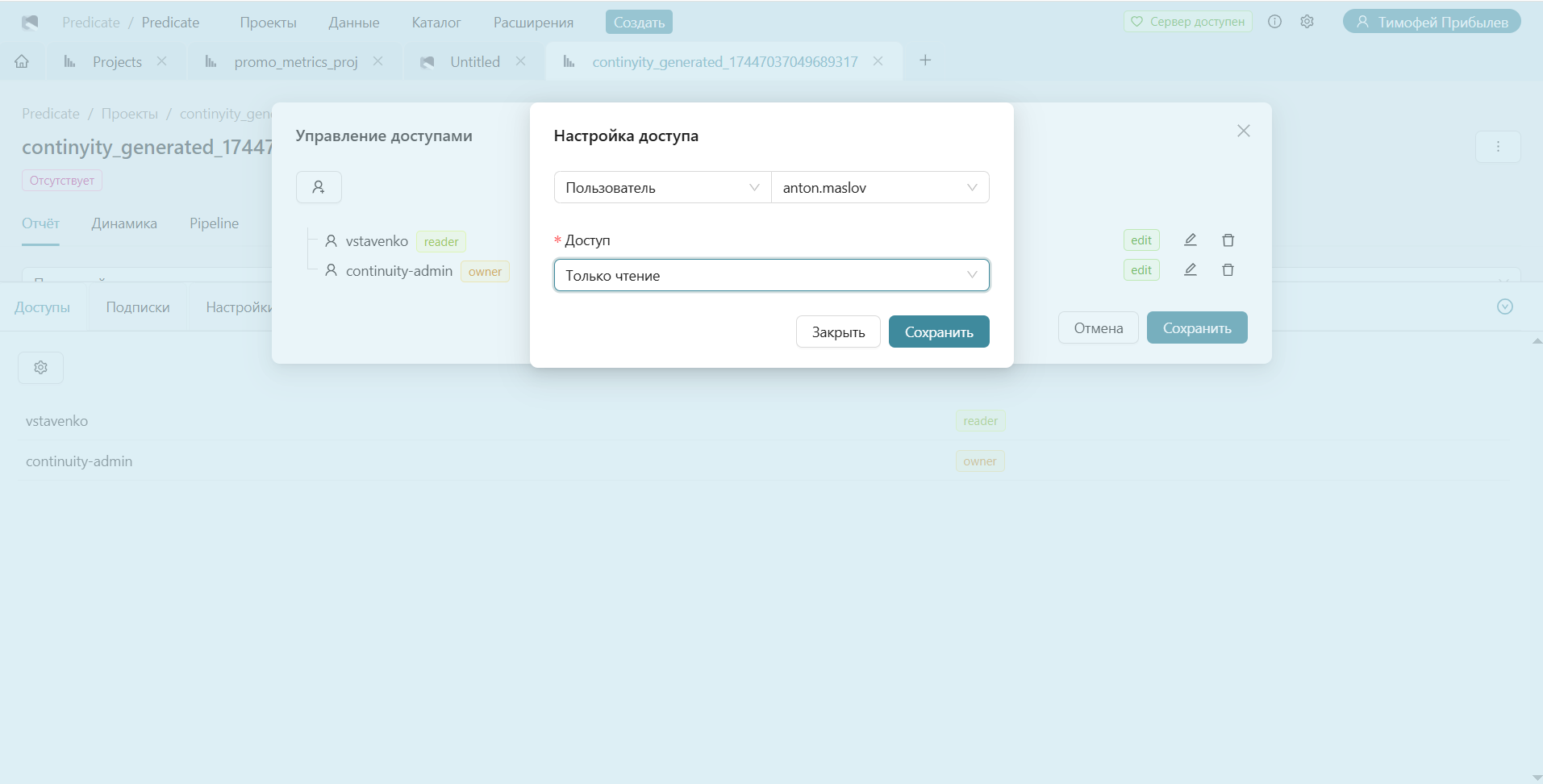
- To add new users/groups in the opened window, click the gear icon, then in the opened window click the user icon
and select the necessary account names and appropriate roles from the dropdown lists. - To edit the role or remove access for a user who already has access to the object,
click the edit icon on the right in the row with the name of the desired user.
Once editing is complete, click the save icon.
The access editing page for a "Project" type object: