Project Catalog
Transition to the Project Catalog
Access to the catalog of existing model/data monitoring projects in the system is done through the Projects tab in the top navigation panel. The project catalog page presents a table with information about available projects:
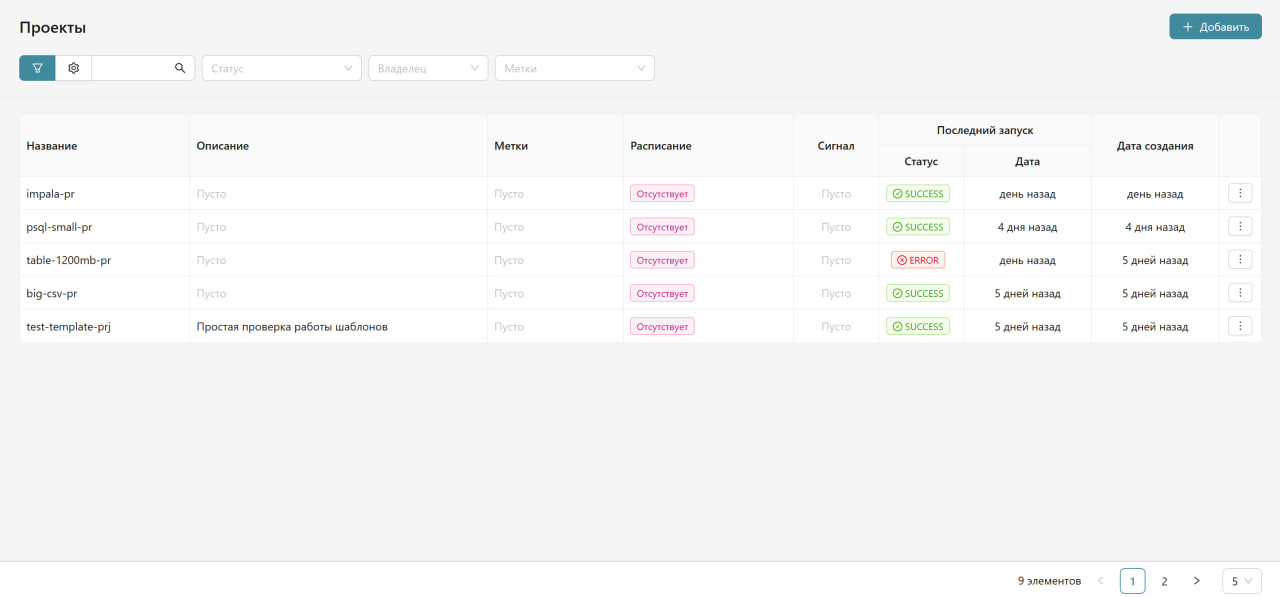
Information Displayed in the Catalog
| Column | Description |
|---|---|
| Name | Project name. Specified by the user when creating the project. Must be unique |
| Description | Project description. Specified by the user when creating the project |
| Tags | Tags indicating project characteristics, with indicators of quantity (e.g., +3) |
| Schedule | Information about the project schedule (set/not set, active/paused) |
| Signal | Result of the rule calculation over the project's scalar metrics (traffic light) |
| Last Run | Status of the last project run (SUCCESS, ERROR) |
| Last Run Date | When the project was last run |
| Creation Date | Date the project was created in the system |
Possible Project Signal Values (Traffic Light)
| Value | Description |
|---|---|
| GREEN | According to the rule, the project completed with a good result |
| YELLOW | According to the rule, the project completed with a satisfactory result |
| RED | According to the rule, the project completed with an unsatisfactory result |
| Empty | No traffic light value (either the traffic light was not used in the project, or the rule has not yet been calculated) |
| ERROR | Error in calculating the traffic light (e.g., one of the metrics used in the rule was not calculated) |
For more details on traffic lights, see the section "Project Traffic Light".
Possible Project Statuses
| Status | Description |
|---|---|
| SUCCESS | The last project run was successful |
| ERROR | Error during project execution |
| ACTIVE | The project is active and runs on schedule |
| PAUSED | The project is paused |
Catalog Management
Catalog Management Toolbar
- Filters - allow filtering transformations by various parameters:
- Status - filtering by the current state of the transformation
- All - additional filtering options
- Tags - filtering by assigned tags
- Owner - search by owner
- Search - search bar for quick transformation searches
- Display Settings - button to configure the appearance of the table
To search for a project, enter a substring in the search field and press Enter or the magnifying glass icon.
Case does not matter; the search occurs by project name and description, as well as by tags.
The catalog may contain more than one page. Page navigation buttons, as well as a button to set the number of objects per page, are available in the bottom right corner of the screen form.
Project Schedule
Projects can have the following schedule statuses:
- Schedule not set - displayed for most projects
- ACTIVE - active schedule
- PAUSED - schedule on pause
- Daily - project runs every day
- Weekly - project runs once a week
- Monthly - project runs once a month
Viewing and Creating Objects
To view general information about the project and results of the project's metric calculations, hover the cursor over the menu icon (three dots) on the right in the corresponding project row and select the desired action.
To add a new project, click the "Add" button in the upper right corner of the project catalog window.
For more details on project results, see "View Monitoring Results".
For more details on creating projects, see the section "Creating a New Project".