Saving the Report as a PDF File
Exporting a report (user dashboard) to a PDF file is possible in two ways:
- when creating the report (in this case, export can be done without intermediate saving in the reports directory);
- exporting a report that was previously saved in the reports directory.
Exporting to PDF When Creating a Report
- Create a report according to the Instructions.
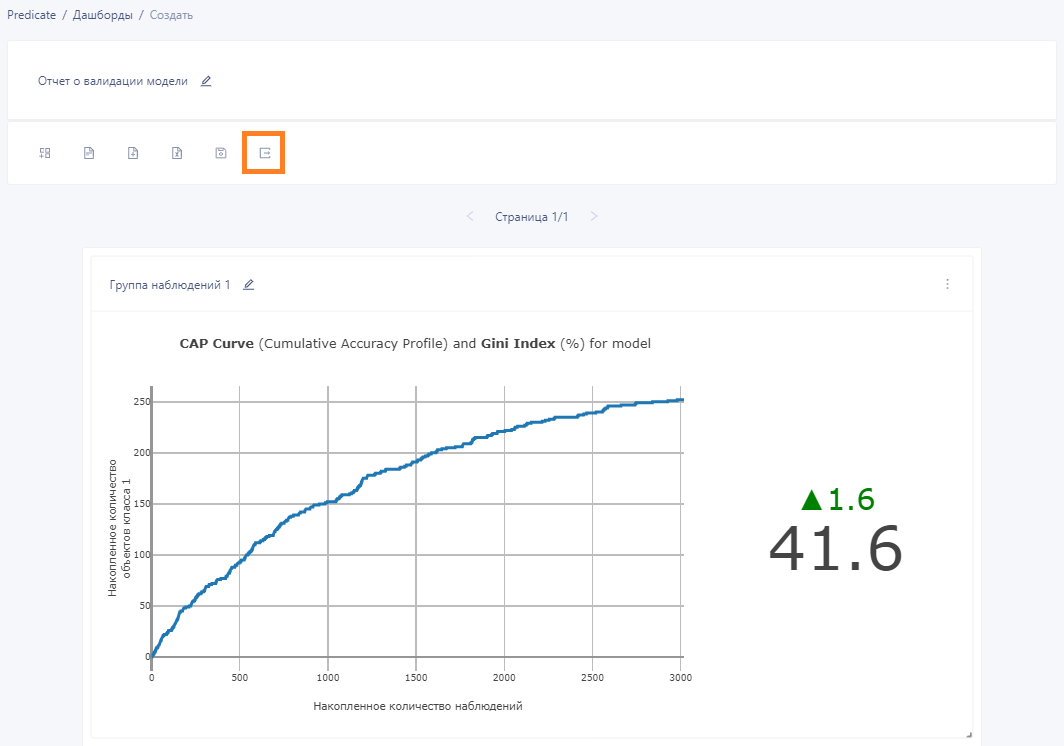
- Save the completed report to the user's computer in PDF format by clicking the export to PDF button, which is located on the right side of the report builder's toolbar.
Report construction page:
After exporting the report in the described way, you can save the report in the directory (by clicking the button with the floppy disk symbol on the toolbar) to continue editing later.
If you leave the report creation page without clicking the save button, the created draft report will be deleted.
Exporting a Report to PDF from the Directory
- From the Reports Catalog, go to the page of the required report. (To do this, hover the cursor over the menu symbol (three dots) on the right in the corresponding report line and click "View".)
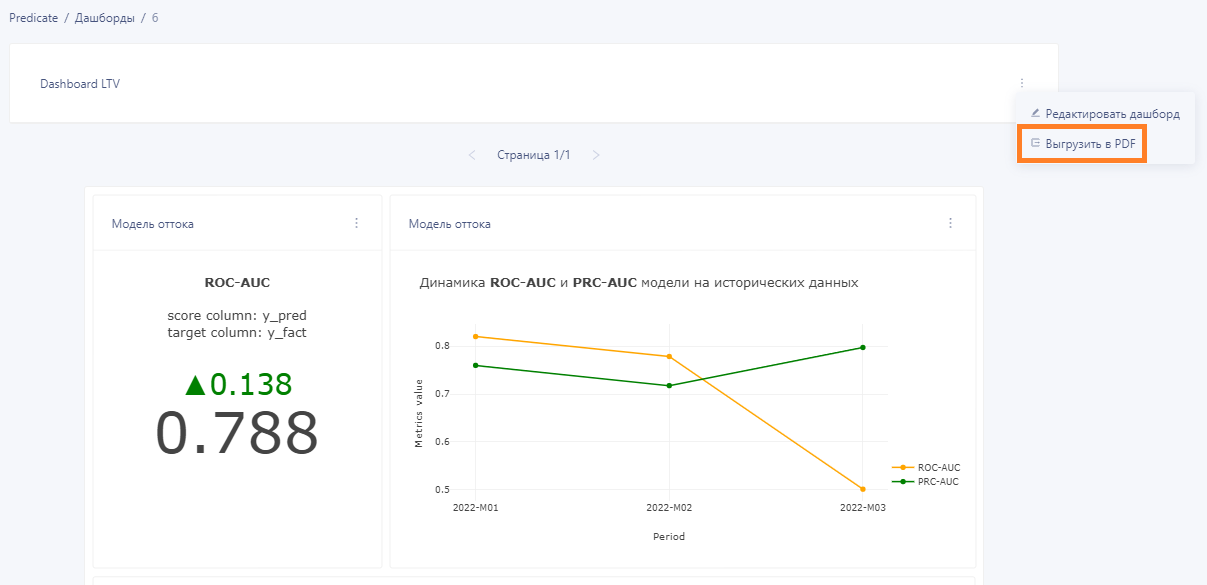
- On the report page, hover the cursor over the menu symbol (three dots) in the upper right corner of the screen and click "Export to PDF".
Report page: